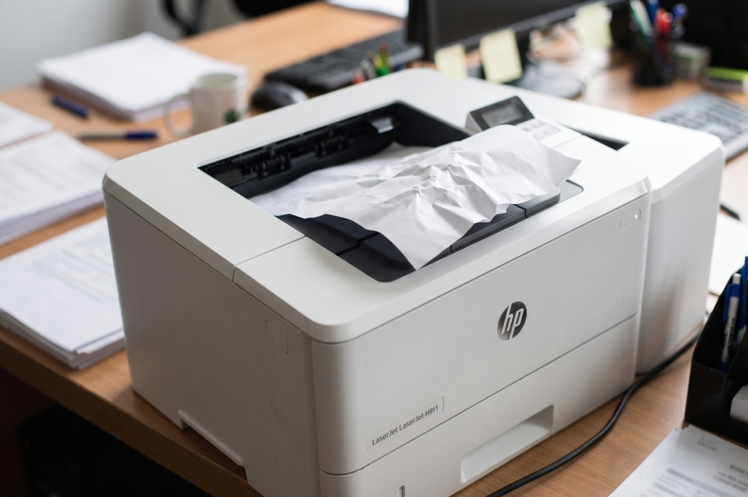
orgStep by Step gudie to fix the HP LaserJet Paper Jam
You hit print. The printer starts. Then it stops with a crunch, and the screen says “Paper Jam.” Sound familiar?
Every LaserJet owner deals with this sooner or later. It’s annoying, but it’s rarely serious. Most jams take five minutes to clear. A jam can also leave toner smudges behind, and a worn cartridge makes the mess worse. If yours needs replacing, pick the right HP toner cartridges for your model. First, let’s get that paper out.
Why Do Paper Jams Happen?
Jams have a few usual causes:
- Paper that’s damp, wrinkled or too thin
- An overfilled tray
- Paper that isn’t lined up with the guides
- Small torn scraps left from an earlier jam
- Dirty or worn rollers
- The wrong paper size or type in the settings
Once you know the cause, you can stop it happening again.
Before You Start
Two quick rules.
- Switch off the printer and unplug it.
- Wait about 10 to 15 minutes if you’ve just been printing. The fuser inside gets very hot. Don’t touch it.
Safety first. Then paper.
Step-by-Step: How to Clear the Jam
Step 1: Check the Message
Look at the control panel. It often tells you where the jam is. Tray, rear door, or inside the printer. That saves you hunting around.
Step 2: Remove the Paper Tray
Pull the tray out gently. Take out any stuck sheets. Check the back of the tray slot too. Sometimes a piece hides there.
Step 3: Open the Rear Door
Many LaserJets have a rear access door. Open it. If you see paper, pull it out slowly. Use both hands. Pull in the direction the paper travels. Never yank it. That tears the sheet and leaves scraps behind.
Step 4: Open the Top Cover and Check the Cartridge Area
Open the top or front cover. Lift out the toner cartridge carefully. Look inside for stuck paper. Hold the cartridge by its handle. Keep it out of bright light, and don’t touch the green or shiny drum surface. Fingerprints leave marks on prints.
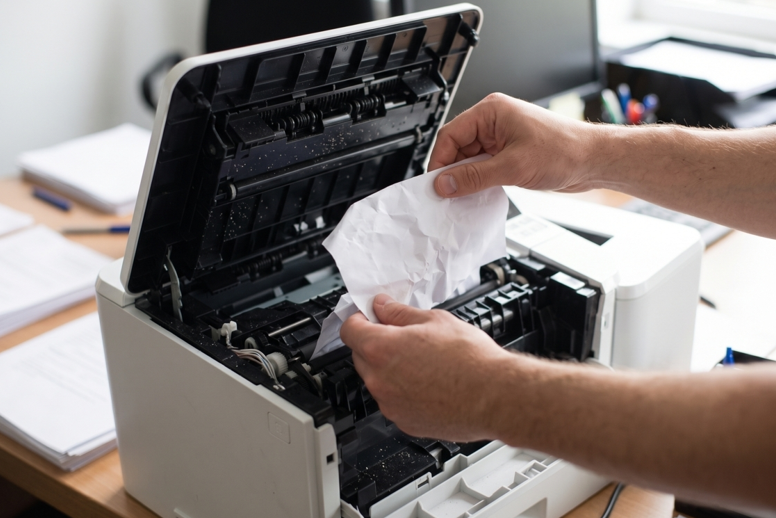
Step 5: Check for Small Scraps
This step matters most. Shine a torch inside. Look along the whole paper path. Even a tiny piece can cause the next jam. If you can see it, take it out gently.
Step 6: Put Everything Back and Test
Put the cartridge back in until it clicks. Close all covers fully. Plug in the printer, switch it on and print a test page. If it prints, you’re done.
Models differ, so check your manual for the exact doors and levers on your printer.
Stop the Jam Coming Back
If your printer keeps jamming, it’s usually one of these:
- Paper quality. Use decent, dry paper. Store it flat, in its wrapper.
- Overfilling. Keep the stack below the fill line.
- Fan the sheets. Riffle them before loading so they don’t stick together.
- Check the guides. They should touch the paper, not squeeze it.
- Match the settings. Paper size and type should match what’s in the tray.
- Clean the rollers. Wipe them gently with a lightly damp, lint-free cloth while the printer is off and cool. Let them dry fully.
Still Jamming? Don’t Ignore It
Here’s where many people go wrong. They keep clearing the same jam again and again. If the jams keep coming even with good paper and a clean path, something inside is probably worn. Often it’s the pickup roller or the separation pad. These parts wear out slowly, and cleaning won’t bring them back.
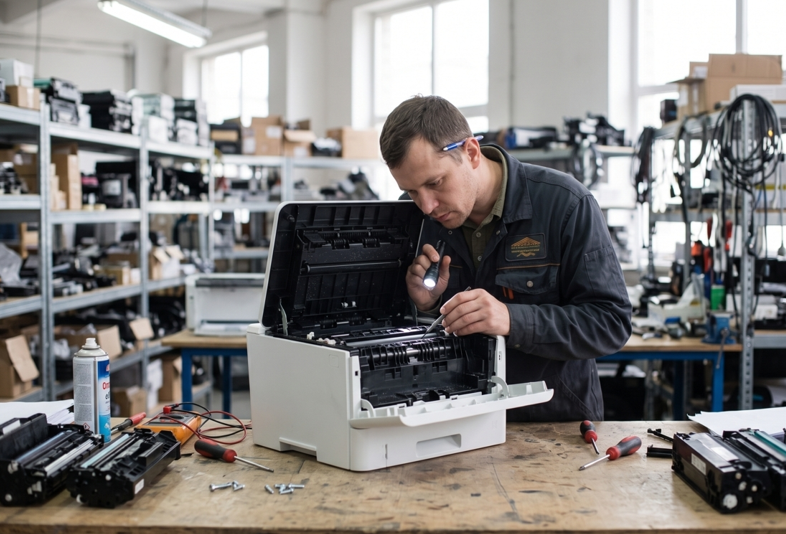
That’s the time to call in a pro. A trusted HP printer repair in Dubai service can test the rollers, replace what’s worn and get the printer feeding properly again. It’s usually much cheaper than buying a new machine.
Mistakes to Avoid
- Pulling stuck paper out fast
- Using a sharp tool to dig it out
- Printing again before checking for scraps
- Touching the drum or fuser
- Ignoring a jam that keeps returning
- Forcing the covers closed
Slow and gentle wins every time.
Habits That Help
- Print a few pages every week
- Keep the printer in a clean, dry, dust-free spot
- Don’t mix old and new paper in the tray
- Remove curled or damaged sheets before loading
- Keep spare paper away from heat and humidity
When Should You Get Extra Help?
Call a technician if:
- The jam message stays after you’ve cleared everything
- Paper jams every few pages
- You hear grinding, clicking or squealing
- Pages come out crumpled or torn
- You smell something burning
Please don’t take the printer apart yourself. The parts inside are small, and the fuser is hot.
Final Thoughts
A paper jam is a pain, but it’s usually an easy fix. Switch off. Let it cool. Remove the paper slowly. Check for scraps. Then test. Use good paper and keep the tray tidy, and you’ll avoid most jams. If the printer keeps jamming anyway, get it checked. Fixing the real cause beats clearing the same jam every day.